*Before installation, install JRE from Oracle page. *For Windows, this installation needs to be done by an account with administrator authority.
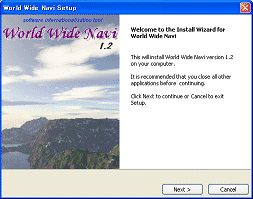
1. Launch the Installer
Launch the installer from the URL indicated in the sent mail.
After launching, proceed to the next step by clicking [Next].
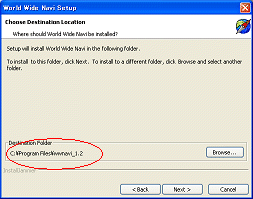
2. Specify the Installation Path
Specify the installation path by [Browse]. After confirming, proceed to the next step by clicking [Next].
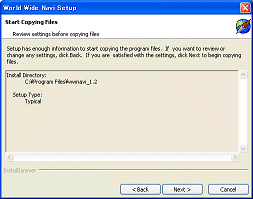
3. Confirm the Installation
After confirming the installation settings, proceed to the next step by clicking [Next].
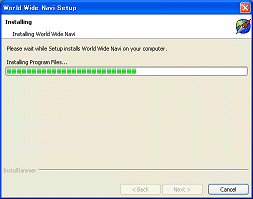
4. Start the Installation
Installation will start. After the installation gets finished, proceed to the next step by clicking [Next].
5. Necessary Library Installation
For Linux, the installation screen of the necessary libraries for web-search function will be shown.
After the ROOT password gets inputted and the installation finished, the screen will be closed automatically, so proceed to the next step by clicking [Next].
For Windows, just proceed to the next step by clicking [Next].
*Note that the software will be installed successfully even if you don't install these libraries on this step.
In that case, install them with the command 'wwnavi-lib-install' in the bin directory of the installation location.
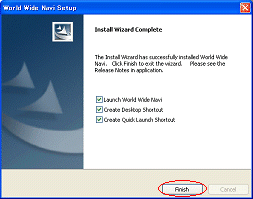
6. Finish the Installation
Now, the installation is finished. World Wide Navi can be started by clicking [Finish].
7. License Installation (for commercial user only)
If you have the commercial license key, please reigister it on [Tool] -> [License Registration]. Unless you do this operation, the application acts as a free version.